Squarespace Contributor Access: How to Invite Someone to Your Website
There may be times when you need to give someone else access to your Squarespace website. Maybe you’re hiring a developer to add custom code, working with an SEO specialist to update page titles and descriptions, bringing in a designer to adjust layouts, or giving an employee access so they can update content from time to time.
The right way to do this is by inviting them as a contributor instead of sharing your own Squarespace login. Squarespace lets each contributor use their own account, and you can choose which permissions they should have based on the work they need to do.
This process is the same whether you’re inviting a designer, developer, SEO specialist, agency, employee, or another collaborator. The main difference is which permissions you choose. If you’re not sure which access level to use, I explain the different options in more detail here: “Squarespace Permissions Explained: How to Choose the Right Access for Designers, Developers, and Collaborators.”
Why You Should Not Share Your Squarespace Login
It can be tempting to just send someone your Squarespace email and password, especially if you only need a quick update made. But that’s not a great habit.
When someone uses your login, they are effectively acting as you. They may have more access than they need, including settings, billing-related areas, domains, or other connected parts of your account depending on your setup. It also makes it harder to cleanly revoke access later. You would need to change your password instead of simply removing that person as a contributor.
This can also create practical headaches for the person helping you. Many designers, developers, SEO specialists, and contractors are working across multiple client sites. If they’re constantly logging in and out of different client accounts, it increases the chance of confusion, mistakes, or accidentally working from the wrong account.
Two-factor authentication can make shared logins even more frustrating. If your Squarespace account requires a verification code, your contractor may need to contact you every time Squarespace asks for one. That can slow down small updates, create unnecessary back-and-forth, and turn a quick task into a management headache.
Contributor access is cleaner. Each person gets their own login, their access can be limited, and you can remove or adjust permissions when the work is done.
Before You Invite Someone
Before you invite someone, take a minute to decide what they actually need access to. A developer, SEO specialist, designer, store manager, and content editor may all need different permissions.
You do not need to give someone full administrator access just because they are helping with the website. In most cases, the safest option is to give them only the access they need to do the job.
How to Invite a Contributor to Your Squarespace Site
1. Go to Settings (the gear icon)
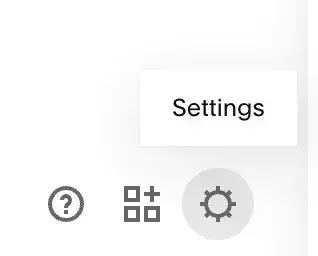
2. Find Permissions & Ownership on the left side menu then click the Permissions & Ownership button in the center.
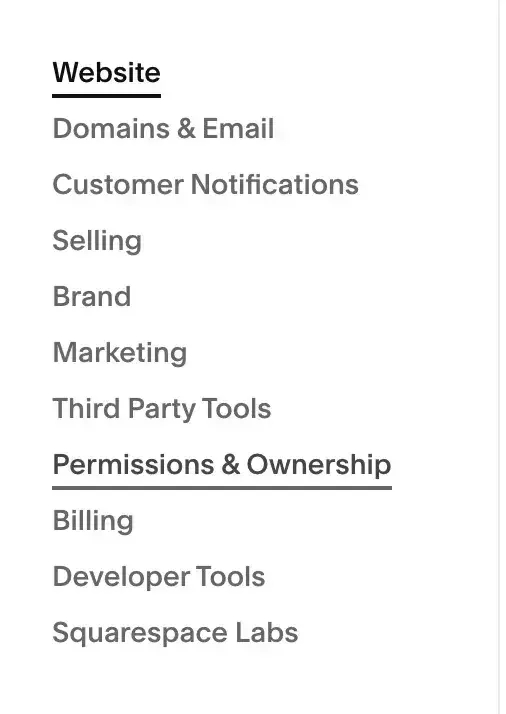
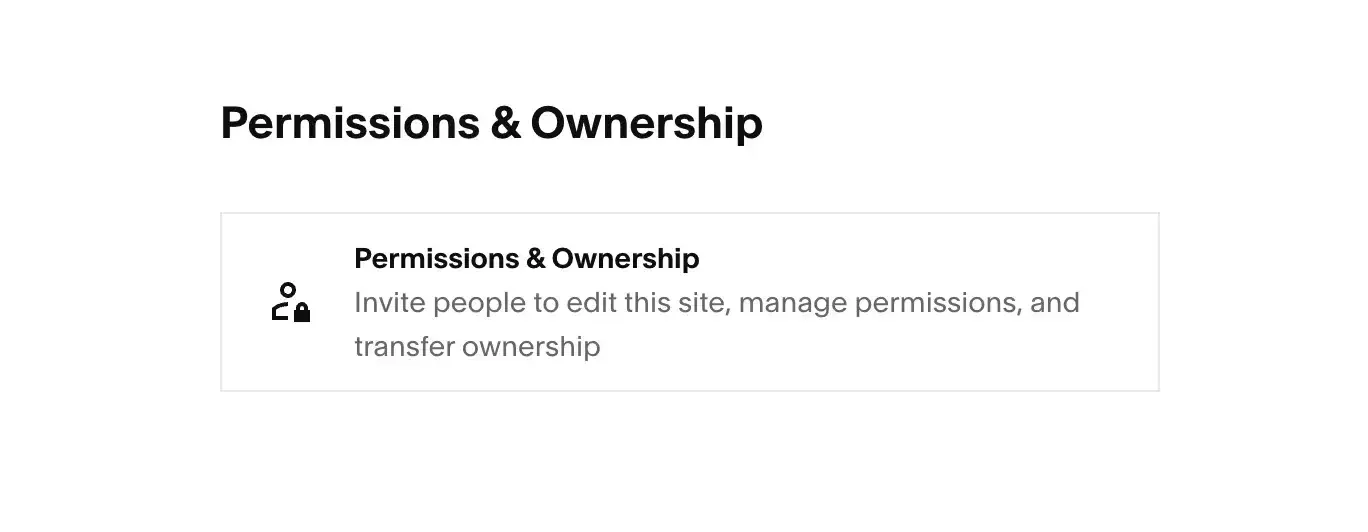
3. Click the “Invite Contributor” button
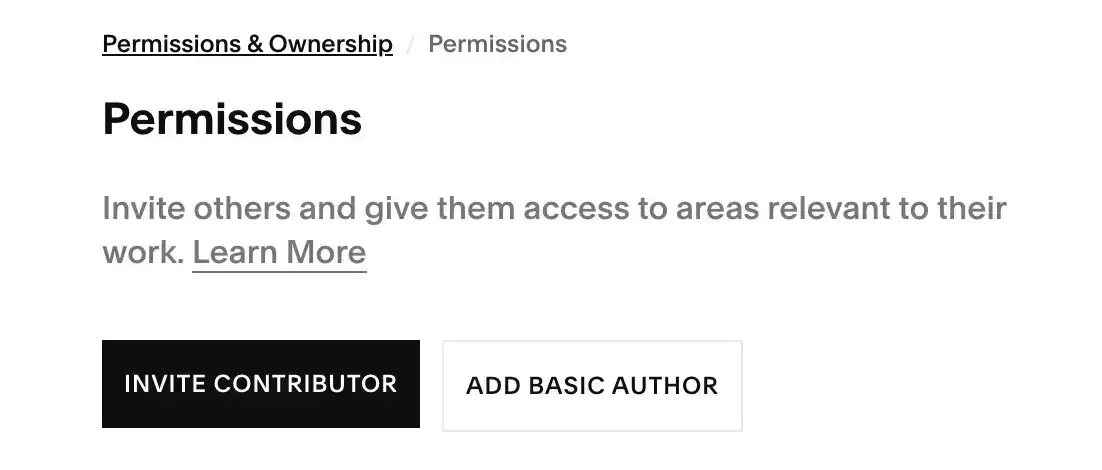
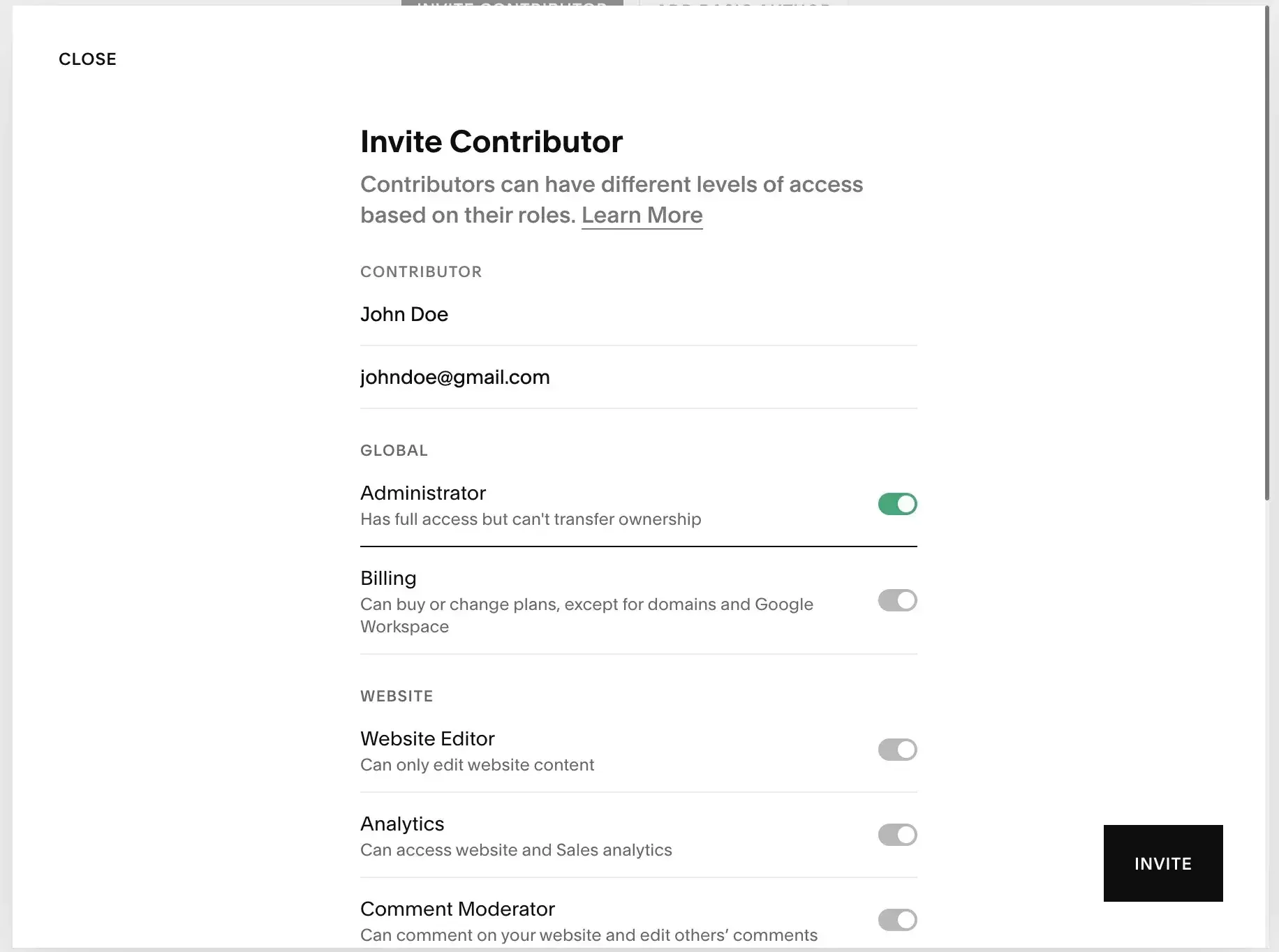
4. Type the person’s name and email address
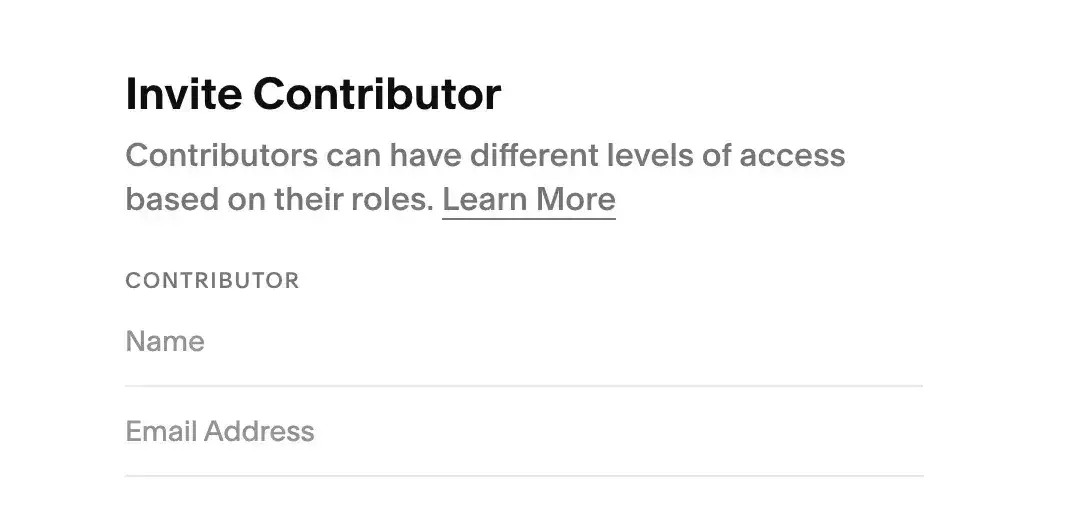
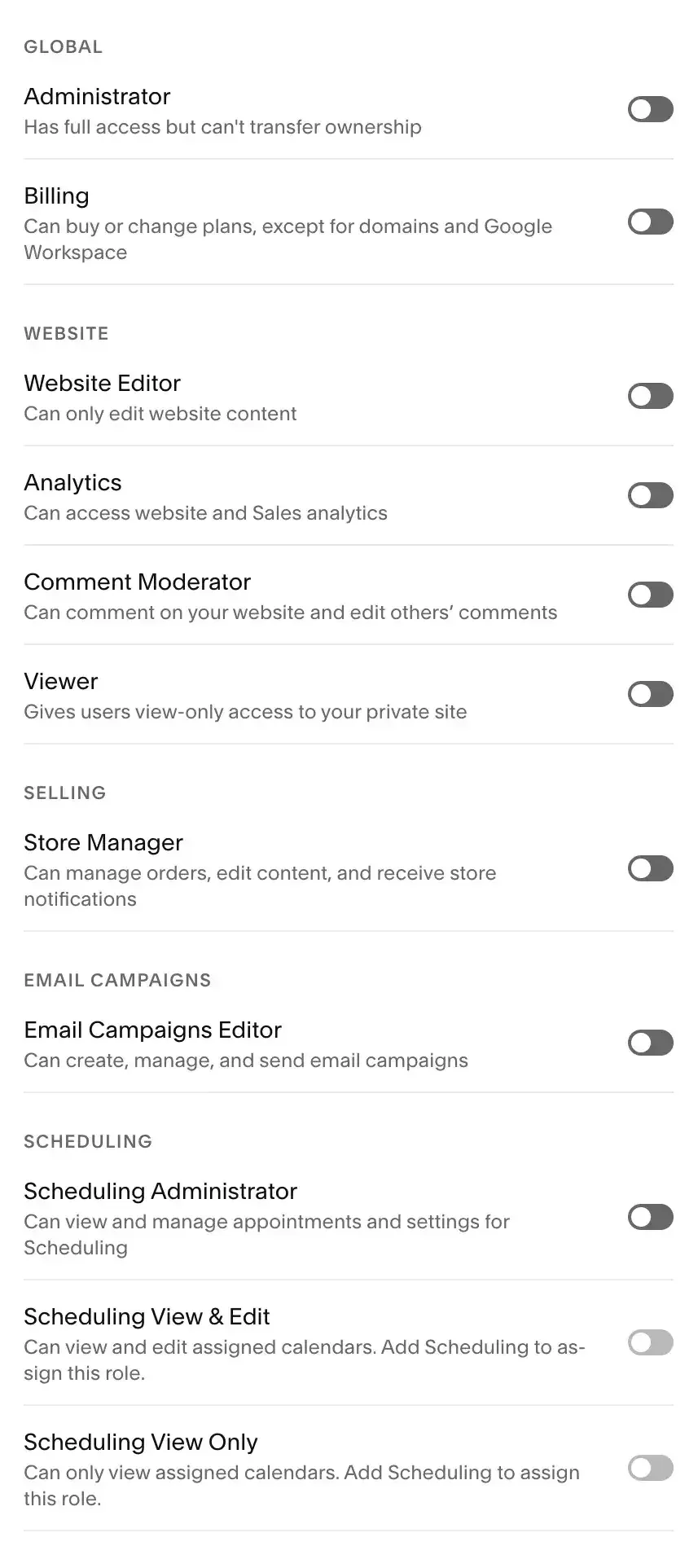
5. Switch on the permissions you’d like to give this Contributor
6. Hit the “Invite” button
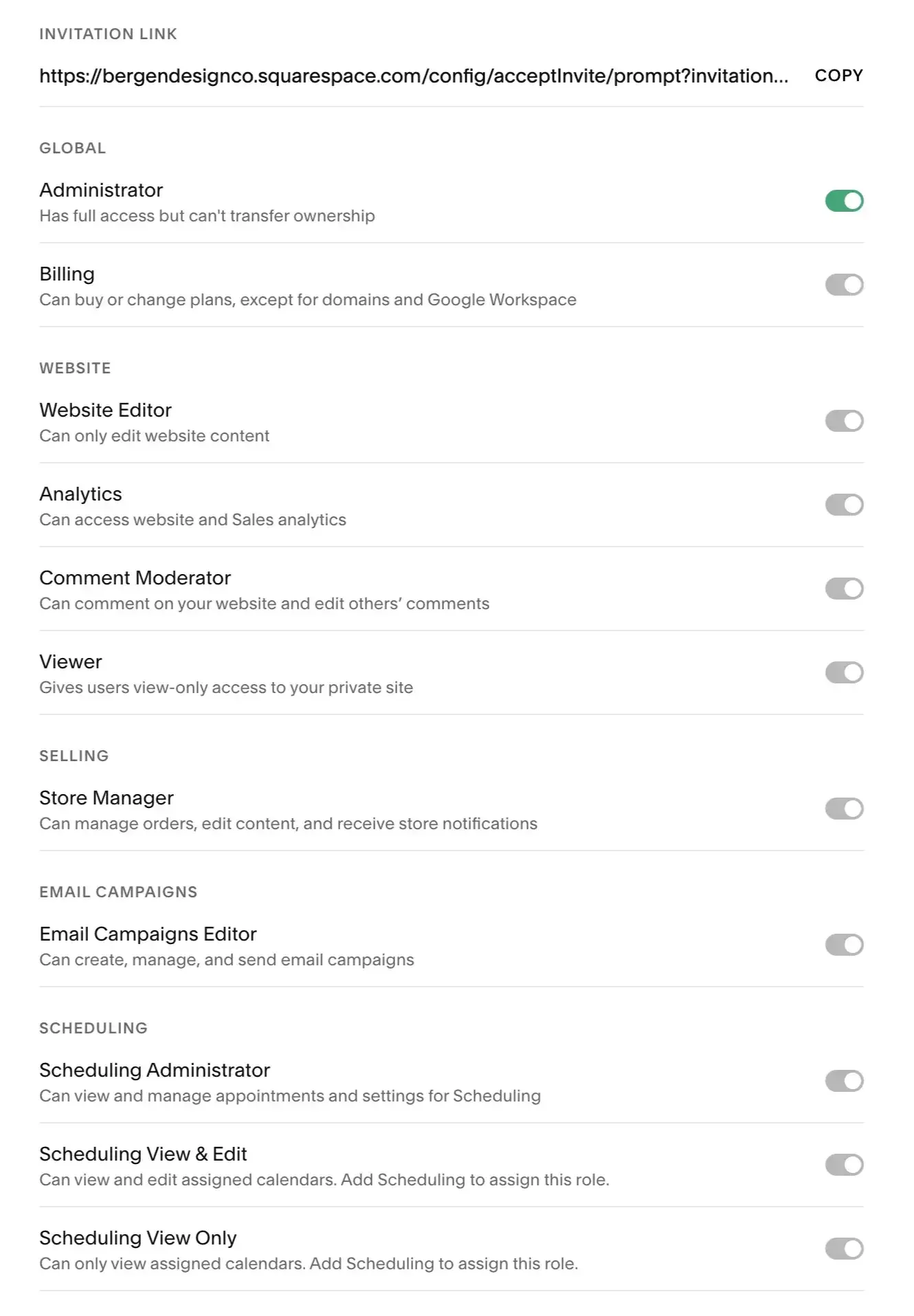
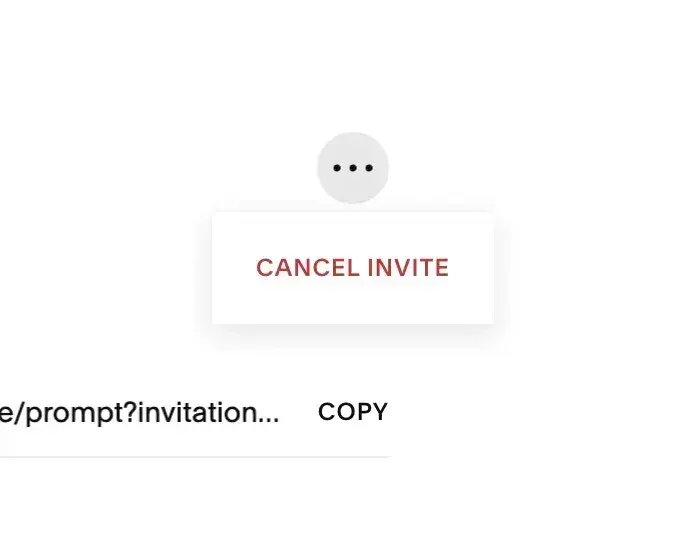
7. This will generates an invite link that you can copy and paste to send to the contributor in case that’s easier or if they just didn’t receive it. This also allows you to adjust the current permissions of any contributor on your site.
How to Remove a Contributor from Your Squarespace Website
If someone no longer needs access to your Squarespace website, you can remove them as a contributor at any time. This is a good habit after a project ends, an employee leaves, or a contractor only needed temporary access for a specific task.
To cancel the invite before they accept. Click on those 3 dots and choose “Cancel Invite”.
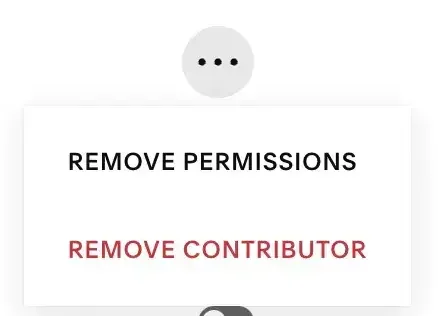
After someone has accepted your invite those same 3 dots have some different choices. Use this to Remove a contributor or remove their permissions temporarily.
FAQs
-
Yes. You can invite them as a contributor using their email address. This lets them log in with their own Squarespace account instead of using your login. This is definitely the best practice.
-
Yes. If someone no longer needs access to your website, you can remove them from your contributors list.
-
Usually, but not always. It depends on what they need to do. If they are working with custom code, site settings, or integrations, they may need higher-level access. If they are only editing page content, they may not need full Administrator permissions however if you’re hiring someone to build or customize your site you will almost definitely need to give them Administrator Access.
-
Squarespace sends them an invitation by email. They need to accept the invite and log in with their own Squarespace account before they can access the site. You will not receive any notifications related to whether they’ve accepted the invitation or not.
-
There are a few listed below. To learn more about them check out my other post about Squarespace Permissions.
Squarespace Permissions List:
Administrator
Billing
Website Editor
Analytics
Comment Moderator
Viewer
Store Manager’
Email Campaigns Editor
Scheduling Administrator
Scheduling View & Edit
Assign & Manage Calendars
Scheduling View Only